Webflow Logo: Best Practices for Optimization and Design (2026)
Learn how to implement, optimize and customize Webflow logos for perfect performance. Technical guide with code examples and best practices.

On this page
Understanding Webflow Logos
The logo is the visual cornerstone of your brand identity on any website, including those built with Webflow. Before diving into technical implementation details, it's important to understand what makes a Webflow logo effective.
In Webflow, your logo typically appears in the navigation bar and footer sections, serving as both a brand identifier and a functional element that links back to your homepage. Unlike logos on other platforms, Webflow gives you complete freedom over implementation, from simple image insertion to complex interactive animations.
The technical aspects of logo implementation in Webflow involve several considerations:
- File format selection: SVG, PNG, WebP, or other formats depending on design complexity
- Loading performance: How your logo affects initial page load times
- Responsive behavior: How your logo adapts across different device sizes
- Accessibility: Ensuring your logo follows web accessibility guidelines
The technical choices you make regarding your logo implementation can significantly impact your site's performance and user experience. For example, an unoptimized logo can contribute to poor Google page loading speed, affecting both user experience and search rankings.
Adding Logos to Webflow Sites
Adding a logo to your Webflow site involves several methods, each with its own technical benefits and considerations.
Basic Image Logo Implementation
The simplest approach is adding your logo as an image element:
- Navigate to the navbar section in the Webflow Designer
- Add an image element to the navbar or designated logo area
- Upload your logo file or enter an asset URL
- Wrap the image in a link block that points to your homepage ("/")
This basic implementation works well for simple logos but requires careful consideration of image optimization. Our Heavy Asset Finder can help identify if your logo is unnecessarily large and impacting performance.
SVG Logo Implementation
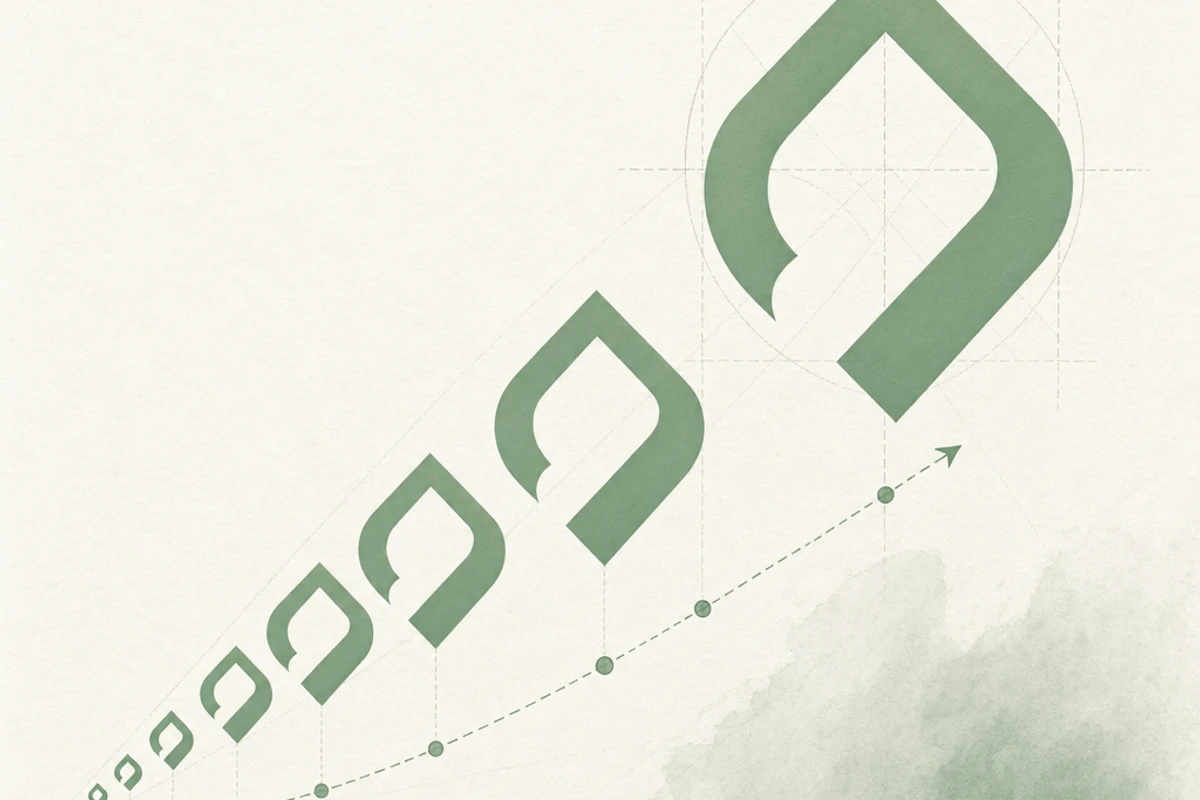
SVG (Scalable Vector Graphics) logos provide superior quality and performance:
- Prepare your logo as an optimized SVG file using design tools like Figma or Illustrator
- Add an image element to your Webflow navbar
- Upload the SVG file to your Webflow assets
- Set the image source to your SVG file
SVGs maintain crisp quality at any size and typically have smaller file sizes than raster alternatives. They're particularly beneficial for logos that need to scale across different device sizes without quality loss.
Custom Code Logo Implementation
For more control, you can embed SVG code directly:
- Create an HTML embed element in your navbar
- Paste your optimized SVG code directly into the embed
- Wrap the embed in a link block pointing to your homepage
This method allows for more advanced features like CSS styling and animations directly on SVG elements, but requires proper code optimization to maintain performance.
Logo Optimization Best Practices
Logo optimization is crucial for site performance, particularly as logos appear on every page of your website.
File Size Reduction Techniques
Reducing your logo's file size improves page load times without sacrificing quality:
- SVG optimization: Use tools like SVGOMG to remove unnecessary metadata and paths
- Raster compression: For PNG or WebP logos, use appropriate compression tools
- Dimension appropriateness: Avoid uploading logos at dimensions far larger than their display size
Our Website Optimizer automatically identifies oversized logos and other images that may be slowing down your Webflow site, providing actionable recommendations for optimization.
Choosing the Right Format
Different logo types require different file formats for optimal performance:
- SVG: Ideal for flat, vector-based logos with limited colors
- WebP: Great for logos with gradients or photographic elements
- PNG: Use when you need transparency but SVG isn't suitable
- Lottie JSON: For animated logos that need to remain lightweight
Format selection directly impacts both loading performance and visual quality across devices. When comparing platform performance, this consideration is particularly important in Webflow vs WordPress implementations, as WordPress often relies on plugin-based optimizations while Webflow requires manual optimization.
Lazy Loading Considerations
While lazy loading is valuable for many images, your main logo should typically load immediately:
- Disable lazy loading for above-the-fold logos to prevent layout shifts
- Consider lazy loading secondary logo instances that appear lower on the page
- Use the loading="eager" attribute for logo images when adding custom HTML
This approach ensures your brand is visible immediately while still optimizing overall page performance.
Advanced Logo Techniques
Beyond basic implementation, Webflow supports several advanced logo techniques that enhance both aesthetics and functionality.
Dark Mode Logo Switching
Implementing alternate logos for dark mode:
- Create two logo variants (light and dark)
- Use Webflow's custom code feature to add JavaScript that detects color scheme preferences
- Swap logo sources based on the detected preference
A simplified implementation example:
// Check for dark mode preference
const darkModeMediaQuery = window.matchMedia('(prefers-color-scheme: dark)');
const logoElement = document.querySelector('.logo-image');

function updateLogoForColorScheme(isDarkMode) {
  if (isDarkMode) {
    logoElement.src = 'path/to/dark-logo.svg';
  } else {
    logoElement.src = 'path/to/light-logo.svg';
  }
}

// Initial check
updateLogoForColorScheme(darkModeMediaQuery.matches);

// Listen for changes
darkModeMediaQuery.addEventListener('change', e => {
  updateLogoForColorScheme(e.matches);
});
Scroll-Triggered Logo Changes
Creating logos that change on scroll enhances user experience:
- Implement two logo variants (e.g., full logo and icon-only version)
- Add JavaScript to detect scroll position
- Toggle between logo versions based on scroll threshold
This technique is particularly effective for maintaining brand presence while maximizing screen space during content consumption.
Retina and High-DPI Support
Ensuring your logo looks crisp on high-resolution displays:
- Use SVG as the preferred format for automatic resolution adaptation
- For raster logos, provide 2x versions and use appropriate CSS
- Test across multiple devices to ensure clarity
Webflow's native image element supports srcset attributes, allowing for resolution-specific image delivery when needed.
Responsive Logo Design
Responsive logos adapt to different screen sizes to maintain visibility and brand recognition across devices.
Breakpoint-Specific Logo Variants
Creating different logo versions for various screen sizes:
- Design logo variants optimized for different screen widths (desktop, tablet, mobile)
- Use Webflow's breakpoints to hide/show different logo versions
- Ensure each variant maintains brand consistency while optimizing for space constraints
This approach ensures optimal brand presentation regardless of the device used to view your site.
Flexible Logo Containers
Using CSS Flexbox for responsive logo placement:
/* Apply these styles to your logo container */
.logo-container {
  display: flex;
  align-items: center;
  max-width: 200px; /* Adjust based on your design */
}

.logo-container img {
  width: 100%;
  height: auto;
}
Flexbox containers allow logos to scale proportionally within defined constraints, preventing layout issues across device sizes.
Mobile-First Logo Implementation
Prioritizing mobile experience in logo design:
- Begin with the smallest, simplest version of your logo for mobile devices
- Progressively enhance logo detail and size for larger screens
- Test touch target size for logo links on mobile (minimum 44x44px recommended)
This approach aligns with modern Webflow developer best practices, emphasizing mobile-first design principles.
Logo Animation in Webflow
Animated logos can create memorable brand experiences when implemented properly.
CSS-Based Logo Animations
Simple, performance-friendly animations using CSS:
/* Example hover animation for logo */
.logo-image {
  transition: transform 0.3s ease;
}

.logo-image:hover {
  transform: scale(1.05);
}
CSS animations are lightweight and work well for subtle interactions like hover effects or fade-ins.
Lottie Animations for Logos
Implementing complex logo animations with Lottie:
- Create your animation in After Effects
- Export as Lottie JSON using the Bodymovin plugin
- Add the Lottie player script to your Webflow project
- Insert your animation JSON via an embed element
Lottie provides vector-based animations that remain crisp at any size while keeping file sizes small, ideal for performance-focused sites. LottieFiles hosts a large library of free and paid logo animations you can preview, edit, and drop into Webflow without opening After Effects.
Animation Performance Considerations
Ensuring animations don't impact site performance:
- Prefer CSS animations over JavaScript for simple effects
- Use the 'transform' and 'opacity' properties which trigger GPU acceleration
- Limit animation complexity on mobile devices
- Consider offering reduced motion options for accessibility
Our Website Optimizer can help identify if your logo animations are causing performance issues, particularly on mobile devices.
Common Logo Issues and Solutions
Even experienced Webflow designers encounter logo-related challenges. Here are solutions to frequent issues:
Fixing Logo Pixelation
When logos appear blurry or pixelated:
- Problem: Logo appears sharp on desktop but pixelated on mobile
- Solution: Use SVG format or provide higher resolution images with appropriate scaling
- Problem: Logo gets distorted when scaling
- Solution: Maintain aspect ratio by setting only width OR height (not both), letting the other dimension scale proportionally
Logo Positioning Issues
Resolving common positioning challenges:
- Problem: Logo alignment shifts between desktop and mobile
- Solution: Use Flexbox for consistent alignment and set specific alignment rules for different breakpoints
- Problem: Logo creates horizontal scrolling on mobile
- Solution: Set max-width values as percentages of the container and ensure proper overflow handling
Logo-Related Performance Bottlenecks
Addressing logo-caused performance issues:
- Problem: Logo significantly increases initial load time
- Solution: Optimize file size, consider simpler designs for mobile, ensure proper format selection
- Problem: Animated logo causes janky scrolling
- Solution: Simplify animations, use hardware-accelerated properties, consider static alternatives for mobile
Our Form Health Monitor can help ensure that forms placed near logos maintain proper functionality, as oversized logos can sometimes create unexpected layout issues that affect form submission rates.
Logo Accessibility Guidelines
Creating accessible logo implementations benefits all users and improves Webflow SEO.
Alt Text Best Practices
Proper alternative text for logos:
- Include your company name in the alt attribute (e.g., alt="Company Name Logo")
- If the logo links to the homepage, consider alt="Company Name - Back to Homepage"
- For decorative logo instances, use alt="" for screen readers to skip them
Proper alt text improves both accessibility and SEO, providing context for search engines and screen readers.
Logo and Keyboard Navigation
Ensuring keyboard accessibility:
- Verify that logo links can be focused via keyboard navigation
- Add visible focus states to logo links for keyboard users
- Test tab order to ensure the logo link is logically positioned in the navigation sequence
These practices align with WCAG guidelines and improve site usability for all users.
Logo Color Contrast Considerations
Ensuring logo visibility for users with vision impairments:
- Maintain sufficient contrast between the logo and its background
- Test logo visibility in both light and dark modes
- Consider how the logo appears to users with color vision deficiencies
Tools like the WebAIM Contrast Checker can help verify your logo meets accessibility standards.
When implementing these accessibility best practices, you're not only improving user experience but also aligning with web standards that can positively impact your site's performance in search rankings. For more depth on SVG optimization and CSS animation patterns, CSS-Tricks covers logo-relevant techniques in detail.
Conclusion: Balancing Brand Identity and Performance
Your Webflow logo serves as both a brand anchor and a functional navigation element. The implementation choices you make directly impact site performance, user experience, and brand perception.
By following the technical best practices outlined in this guide, you can create a logo implementation that:
- Loads quickly and efficiently on all devices
- Maintains visual quality across screen sizes and resolutions
- Functions properly for all users, including those with accessibility needs
- Adapts appropriately to different viewing contexts
Remember that logo optimization isn't a one-time task. As you update your site and brand, regularly revisit your logo implementation to ensure it continues to meet performance standards while effectively representing your brand.
We recommend using our Website Optimizer to periodically audit your site, including your logo implementation, to identify any performance improvements that could enhance user experience and search engine rankings.